Share reminders between iPhone and Android
You do not need matching phones to organize everyday tasks together. Couple Reminder has iPhone and Android apps that connect through a shared space. Start by installing the app on both devices.
Before you start
Use the App Store on your iPhone and Google Play on your Android phone. Keep both phones connected to the internet during setup. Each person uses the app on their own device; sharing happens by joining the same space, rather than by sharing an Apple or Google account.
No email or password is required. Couple Reminder creates an account automatically for the device, and the app is free with ads. Keep invitation codes between the people you want in the space: they are a way to join your shared reminders.
Create a space and invite your partner
- On the first phone, create the space. Open the space selector, choose Create a new space, and give it a familiar name such as Home. Select Create space.
- Create an invitation. With that space active, choose Invite to this space. The invitation provides a QR code and an 8-character code.
- Join on the second phone. Open the space selector and choose Join with code or QR. Scan the invitation using the app, or type its 8-character code and choose Join space. The code is useful when you cannot scan the other screen.
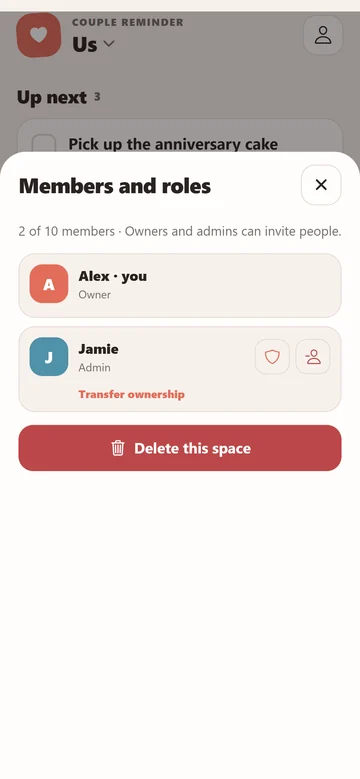
- Check that you are together. Select the same space on both phones and check Members and roles. Add a simple test reminder on one phone, then open the shared space on the other and confirm it appears.
If you each created a separate space with the same name, they are still separate spaces. Join one person's invitation and use that shared space on both devices.
Check notifications on each device
Sharing a task and displaying an alert are separate things. Each phone needs its own notification permission, and each partner's notifications must be enabled. In device settings inside the app, use Allow device notifications and Send test notification. Check Background readiness for issues that need attention.
Create a reminder with a future due time and confirm its details on both devices. Assigning responsibility to one person does not make that person the only possible alert recipient: both partners can receive timed alerts when enabled. Location reminders have a different rule; they notify the phone entering the saved area. Read the location reminder guide before setting one up.
If a reminder is missing or out of date
- Check the active space. Compare the selected space and its members on both phones.
- Check connectivity. You can view and edit saved reminders offline, but the other phone receives changes after they sync with an internet connection.
- Reopen the app while connected. Let each phone refresh, then check the reminder again. Do not assume an offline change has already reached your partner.
- Review editing conflicts. If the app says someone else changed the reminder, review their version before choosing to replace it with your changes.
If an invitation fails, check the characters and ask the space owner whether the invitation is still active. Try the manual code when scanning is difficult. Avoid repeatedly creating new spaces as a fix for a connection problem.
Make your first real reminder useful
Choose one task you both recognize, such as buying groceries or booking a table. Add a clear title and any practical detail in the note. The shared reminders guide has more everyday examples.
For an unresolved problem, contact support with both phone types, app versions and the step that failed. Do not include your invitation code or private reminder contents.